Help
Short how-tos, each with a picture. They work the same on a phone and a computer.
Open a drawing from WhatsApp or email
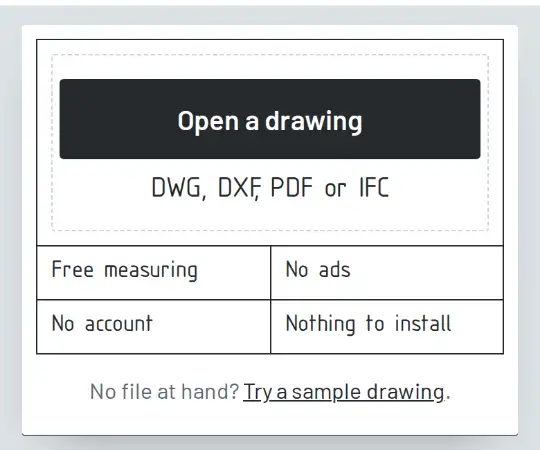
- Save the file to your phone first. On an iPhone, tap the file, tap Share, then Save to Files. On Android, tap the file, or the download arrow in Gmail.
- Go to the front page and tap Open a drawing. The button at the bottom of this page takes you there.
- Pick the file. A PDF, DWG, DXF or IFC file opens in the right viewer by itself.
On a computer, save the attachment, then drag it onto the page.
Measure a length
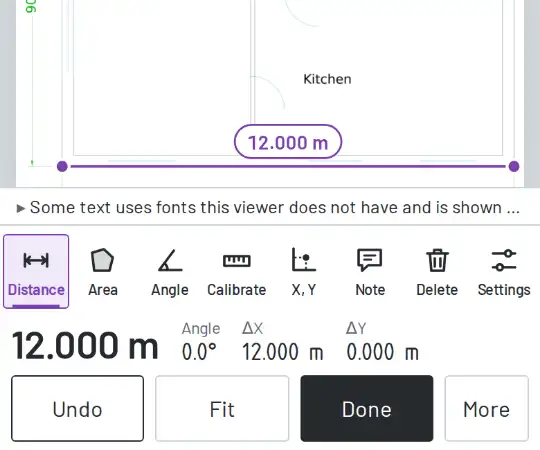
- Press Measure. Distance is already chosen.
- Tap one end, then the other. The length shows on the line and in the bar at the bottom.
- To aim exactly, hold your finger on the drawing. A cross and a magnifier show the point above it; lift your finger to place it.
- Tap more points for a chain of lengths. Press Done to finish. Undo takes back the last point.
With Snap on (under More), a point near a line end, a corner or a middle snaps to it.
Set the scale
- A DWG or DXF usually stores its units. Then the bar says Scale from drawing, and you can measure at once.
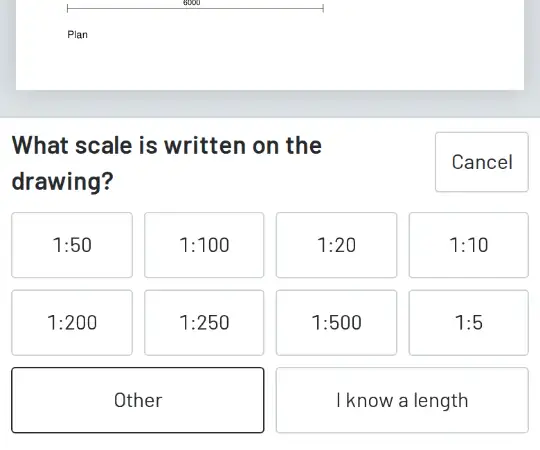
- A PDF may have no scale. Then Measure asks: What scale is written on the drawing? Tap the scale from the title block, for example 1:100.
- Not sure of the scale? Tap I know a length. Tap both ends of a dimension written on the drawing, type its length and tap Use this length.
- To change the scale later, press More, then Set scale.
To be sure, measure one dimension written on the drawing and compare.
Area with one tap
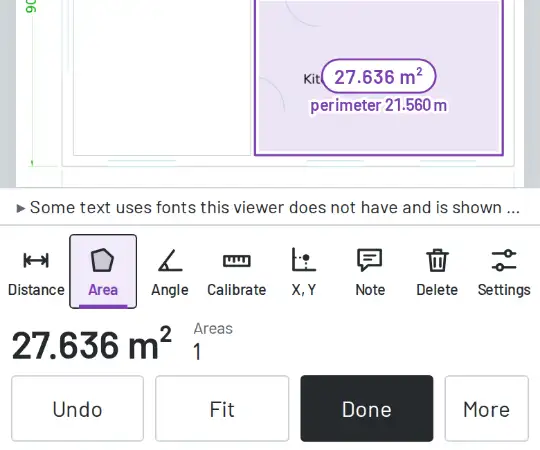
- Press Measure, then Area.
- Tap inside a room. If its outline is closed on the drawing, the area and the perimeter show at once.
- Tap more rooms. The big number in the bar is then their total, and Areas says how many there are.
- If it says No closed outline here, tap each corner instead, then the first corner again.
IFC models: the basics
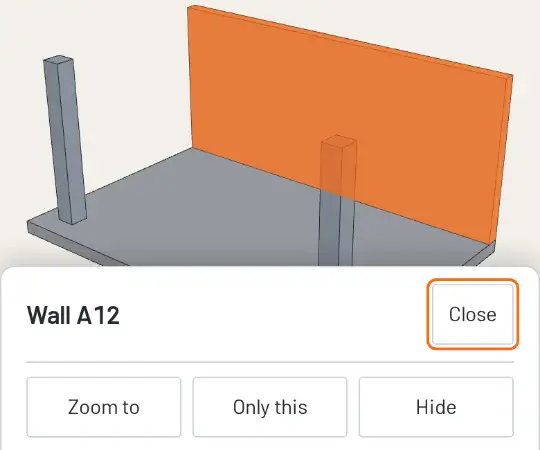
- Open the IFC file like any drawing. It opens in your browser and never leaves your device.
- Turn the model with one finger. Pinch to zoom, and drag with two fingers to move it. With a mouse: drag to turn, right-drag to move, wheel to zoom.
- Tap a part to see what it is: its name, type, storey and material.
- View looks from the top, the front or the side. Elements finds a part, or shows one storey only.
- Section cuts through the model. Measure gives the distance between two points.
Which DWG files open
These DWG formats open. We have tried each of them with test files:
R2.6, R9, R10, R11 and R12, R13, R14, 2000, 2004, 2007, 2010, 2013 and 2018.
Files in the R1.4 and R2.10 formats do not open. We have not tested formats that are not listed here.
If a file does not open, the page says why. Then ask the sender for a PDF of the drawing.
What a pass buys
Viewing and measuring are free, always. A pass is for more than one conversion a day and for converted files without the "Converted with OpenMyDrawing" line. Free views of DWG and DXF drawings carry a light "Preview" watermark; a pass for the file removes it.
- One-file pass, $4.99 (one-off payment). One drawing file: convert it with no daily limit and without the line, and view its drawings without the watermark.
- Monthly pass, $9.99 (a month, cancel any time). Every drawing file: conversions with no daily limit and without the line, and views without the watermark.